Specky board recipe
A customer intel board in Claude: what customers say, by source
“What are customers saying, and where is it coming from?”
Claude reads the signals Specky captured from Slack, Intercom, Jira, calls and the Specky Chrome extension, and lays them out by source: how much came in, from where, and the latest quotes.
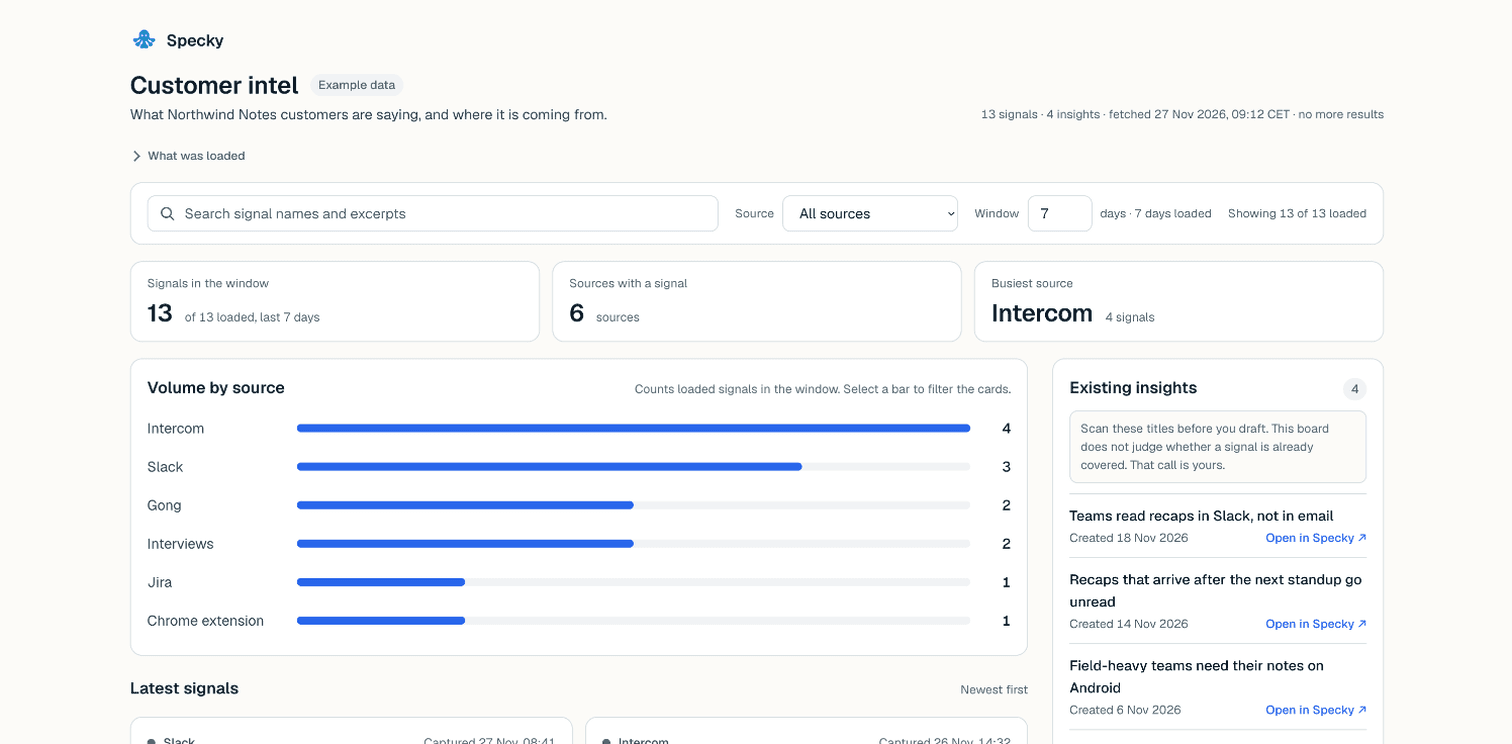
What you see
- A header strip: signals in your window, number of sources and the busiest one.
- Volume by source as a simple bar list, then the latest signals as cards.
- Your existing insights alongside, so you spot a duplicate before writing a new one.
- Filter by source, search, and change the window without rebuilding.
How to build it
- 1Add Specky as a custom connector in Claude (ChatGPT works too, on plans that allow custom connectors) with the URL
https://www.specky.space/api/mcp. Sign in and pick your workspace. Step by step - 2Ask your assistant to “build my customer intel with Specky”, or paste the recipe below into a new chat for full control.
- 3Your assistant reads your workspace, applies the Specky look and builds the board next to the chat.
Customer intel recipe
A private customer-voice board: recent customer and team signals by source, with the insights drawn from them.
Build me a private interactive customer intel board as an interactive artifact (a canvas or app if you are not Claude), using my connected Specky connector. It should show me what customers are saying and where it is coming from.

1. Use my real workspace
- Find the Specky connector and call its tools now. Read only with: get_brand_kit, list_recent_signals, list_workspace_items, read_workspace_item.
- Call get_brand_kit first and build in its look.
- Never use sample, placeholder or invented data. If a call fails, show the error on the board instead of filling the gap.
- If the Specky connector is not connected, stop and ask me to connect it as a custom connector at https://www.specky.space/api/mcp.

2. Be honest about scope
- Show what was loaded in plain words in the header: the item count, the fetched time, and whether more results remain (has_more is true, or a tool without has_more returned exactly its limit). Put the exact tools and filters in a small "What was loaded" disclosure, not in the header.
- Never present a partial list or a failed request as the complete picture. Show a missing field as "unknown", never as zero.

3. Load
- list_recent_signals with source_types ["SLACK","JIRA","GITHUB","GONG","PENDO","POSTHOG","INTERVIEW","USER_RESEARCH","user_research","RESEARCH_STUDY","RESEARCH_OBSERVATION","RESEARCH_FINDING","PUBLIC_FEEDBACK","PUBLIC_FEEDBACK_COMMENT","FEEDBACK","FEEDBACK_INTEL","FILE_UPLOAD","GOOGLE_DRIVE","NOTION","CONFLUENCE","CHROME_EXTENSION","COMPETITIVE_INTEL","MARKET_INTEL","HIRING_INTEL","SOCIAL_MENTION"] and limit 100. Pass this list exactly: it keeps product items, Specky documents and agent records out. Say so in the scope line, e.g. "N signals from customer and team sources".
- Keep signals captured in the last 7 days. The tool returns at most 100 rows and has no cursor: if the oldest row returned is still inside the window, say older signals in the window may be missing.
- list_workspace_items with types ["insight"] and limit 100.
- read_workspace_item for one signal at a time, only when I open its details drawer.

4. Board view
- A header strip: signals in the window, number of sources, and the busiest source. Count what was loaded only.
- Volume by source_type as a simple bar list, then the latest signals as cards (name, excerpt, captured time, link to its url).
- A side list of existing insights by title and link. The connector does not say which signals an insight cites, so never mark a signal as covered.
- Filter by source and a text search.
- Every card links to its item's url in Specky.
- Label items whose fields.origin is "onboarding" as "AI-generated at signup", so they never read as my team's own work.

5. Hand-off
Each card has an "Ask what they need" button: "In Specky, read signal <id> with read_workspace_item and tell me what the customer actually needs. Answer here; save nothing." Use the real id.

6. Editable window
Let me change the window (default 7 days) on the board and regroup without reloading.

7. Stay read-only
- The artifact must never call any Specky tool not listed in step 1.
- Drafting happens in this chat, not in the artifact: use a copy button labelled with what it drafts or asks (for example "Draft a look-back") whose prompt names the exact item id and tells Claude to draft in the chat first and save nothing until I approve.

8. Make it work
- Look like Specky: the get_brand_kit logo inline with the word "Specky" in the header, its light and dark colours, status badge pairs, type scale, layout rules and footer. Never a generic dashboard.
- Readable cards, a search box and a details drawer. Polished empty, loading and error states. Usable from 360px wide.
- If the artifact cannot re-call the connector itself, label the data "Snapshot" with its fetched time. Never show a "Live" label you can't back.
- Keep the artifact private. People outside my organization get no connector access, so share this recipe, never a board that carries my data.
What it reads from Specky
The board only reads. Anything that writes happens in the chat, after you say yes.
get_brand_kitThe Specky logo, colours and layout rules, so every board your AI builds looks like Specky in light and dark.list_recent_signalsWhat customers and teammates said most recently, from Slack, Jira, Gong, GitHub and more.list_workspace_itemsOpportunities, decisions, experiments, OKRs, tickets, insights and objectives with their status and a link back to Specky, ready for your AI to build a board from.read_workspace_itemRead a full PRD, decision, insight or ticket with its links.
Good to know
- Only customer and team sources count as signals. Specky's own documents and agent records stay out.
- Counts are of what was loaded. If more signals exist than one call returns, the board says so.
Why it works this way: read the launch note →
More Specky boards
No Specky workspace yet?
Sign up, then add the connector. Or start in Claude: add the connector and it asks you to sign up.
Card required · Nothing charged until day 14 · 30-day refund