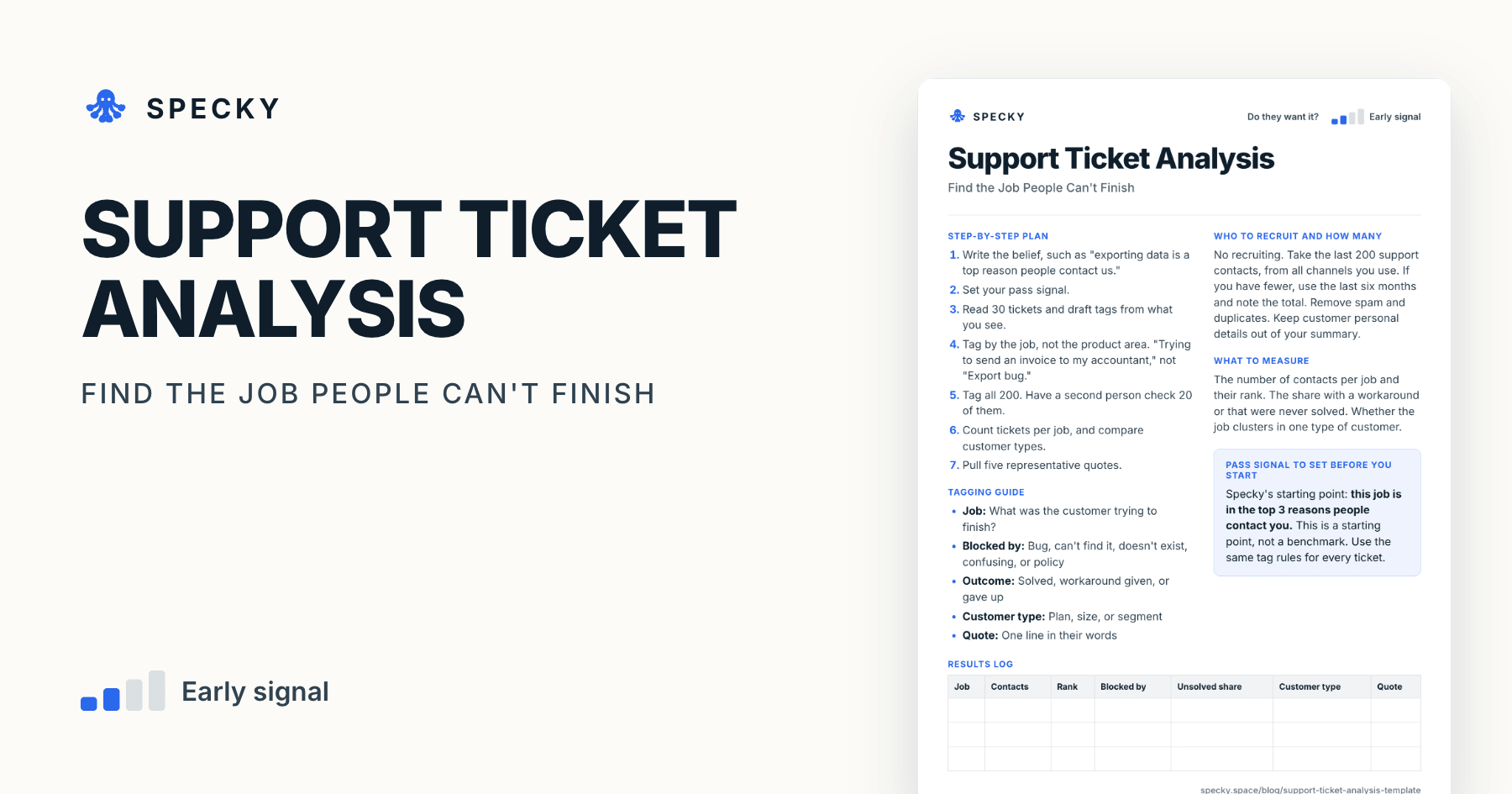
Support Ticket Analysis Template: Find the Job People Can't Finish
Your support inbox is research you already paid for. Tag it by what customers were trying to do, check the tags hold up, and see what hurts most.
Share
Support ticket analysis is a two-day desk test: you tag your last 200 support contacts by the job the customer was trying to finish, count tickets per job, and see which jobs cause the most trouble. Customers have already described the problem, unprompted and timestamped. It shows pain, not willingness to pay, and it misses everyone who left without writing in.
Key takeaways
"Customer support analysis" is one of five data-analysis discovery experiments in David J. Bland and Alex Osterwalder's Testing Business Ideas (UPV course).
Tag by the job, not the product area. "Trying to send an invoice to my accountant" tells you what to fix; "Billing" doesn't.
Helpdesk auto-tags were built for routing. Zendesk's automatic tagging matches words in a new ticket against tags already in use and adds the top three (Zendesk).
Check your tags before you count. Have a second person tag 20 tickets; many methods texts treat 80% agreement as the minimum acceptable (McHugh, 2012).
Specky's starting pass signal: the job is in the top 3 reasons people contact you.
What is support ticket analysis?
Support ticket analysis means tagging recent support contacts by the job the customer was trying to finish, so you can see which jobs cause the most trouble. "Contacts" covers every channel: email, chat, in-app messages, calls with notes, and the support forum if you run one.
It is one of the cheapest ways to size a problem in a live product, because the work of describing the problem is already done. The difference from routine support reporting is the label. Support teams tag for routing and workload; for product decisions you tag for the job and what blocked it, in the spirit of jobs to be done.
When should you use support ticket analysis, and when not?
Use it when you have a live product and enough contacts to count. It is one of the cheapest ways to size a problem, because customers have already told you, unprompted, and timestamped it for you.
Do not use it:
For a product with almost no users. Ten tickets can't rank anything.
To learn about people who left silently. They do not write in.
To answer the money question. A pile of tickets shows pain, which is different from willingness to pay. For that, try a mock purchase intent test.
Which risk does it test, and how strong is the evidence?
This tests desirability: which problem is hurting real customers the most? The evidence is directional. It comes from real behaviour, since people went to the trouble of writing in. But volume does not tell you what fixing it is worth. Our guide to choosing a product experiment explains how to read this level.
Copy-and-use support ticket analysis template
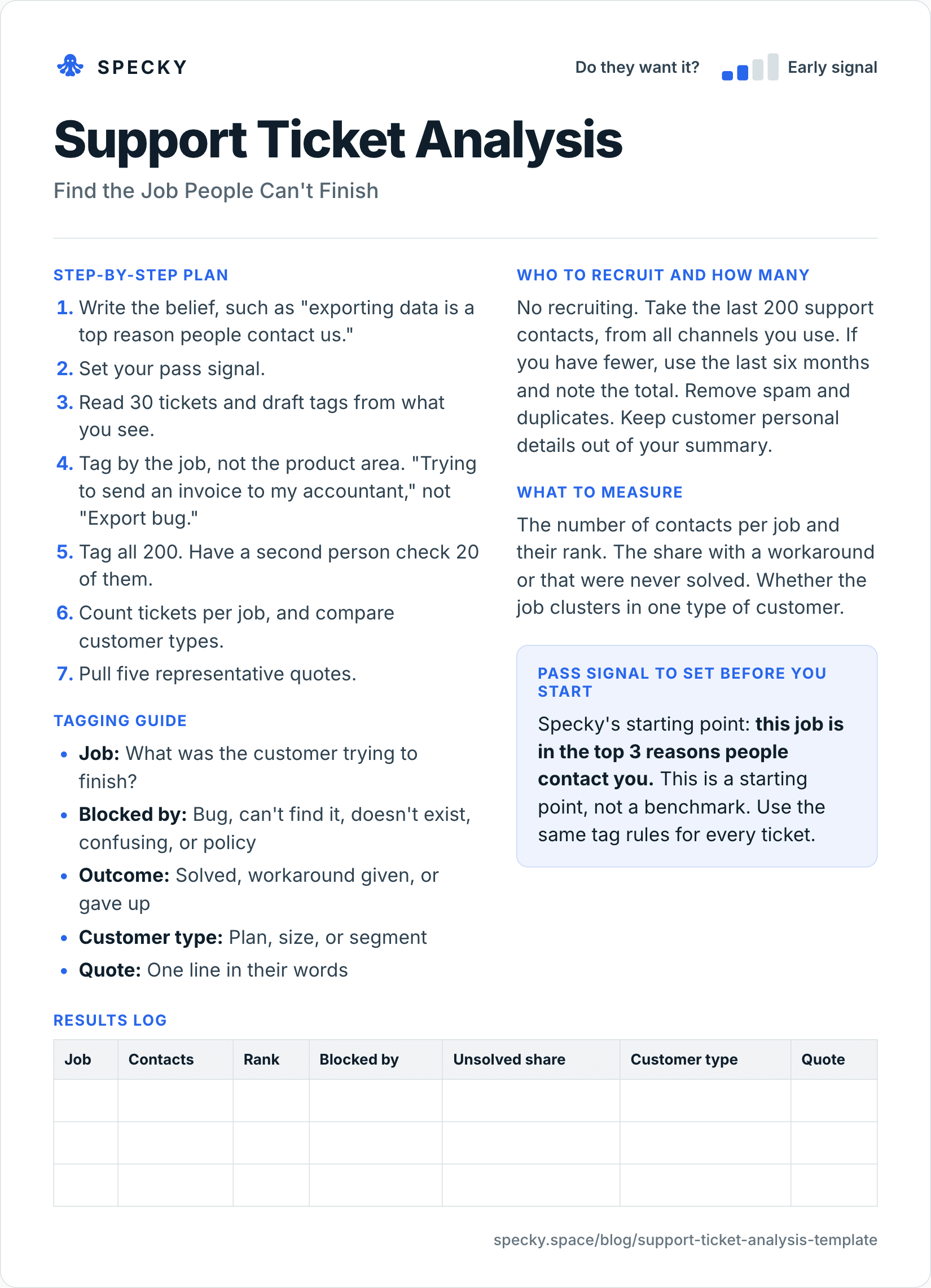
Open the image at full size, or copy the text version below.
Who to recruit and how many
No recruiting. Take the last 200 support contacts, from all channels you use. If you have fewer, use the last six months and note the total. Remove spam and duplicates. Keep customer personal details out of your summary.
Step-by-step plan
Write the belief, such as "exporting data is a top reason people contact us."
Set your pass signal.
Read 30 tickets and draft tags from what you see.
Tag by the job, not the product area. "Trying to send an invoice to my accountant," not "Export bug."
Tag all 200. Have a second person check 20 of them.
Count tickets per job, and compare customer types.
The number of contacts per job and their rank. The share with a workaround or that were never solved. Whether the job clusters in one type of customer.
Pass signal to set before you start
Specky's starting point: this job is in the top 3 reasons people contact you. This is a starting point, not a benchmark. Use the same tag rules for every ticket.
Results log
Job
Contacts
Rank
Blocked by
Unsolved share
Customer type
Quote
How do you build a ticket tagging scheme that holds up?
Write a short codebook before you tag all 200. Nielsen Norman Group's guide to thematic analysis recommends giving each code a name, a description and examples of text that fit and don't fit it, which matters most when more than one person is coding (Nielsen Norman Group).
A workable codebook for support tickets:
Field
Rule
Example that fits
Example that doesn't
Job
A verb phrase the customer would recognise
"Refund a client's deposit"
"Payments"
Blocked by
Exactly one of five values
"Can't find it": the setting exists but they never found it
"UX issue"
Outcome
Solved, workaround given, or gave up
"Support refunded it by hand" = workaround
"Closed"
Customer type
Taken from your account data, not guessed
"Plan: Team, 6 seats"
"Seems like a big customer"
Four rules keep the counts honest:
Draft tags from 30 tickets, then freeze them. Aim for roughly 8 to 15 jobs. More than that and nobody tags consistently.
Keep "Other" small. If more than about 1 in 10 tickets lands there, a job is missing from the list.
One job per ticket. If a ticket covers two, tag the one the customer opened with and note the second.
Tag the thread, not the first line. The real job often only appears in the second or third message.
How do you check that your tags are reliable?
Ask a second person to tag 20 of the 200 tickets with the same codebook, without seeing your tags. Count the tickets where you both chose the same job. That share is your percent agreement.
Mary McHugh's 2012 paper on inter-rater reliability notes that many texts recommend 80% agreement as the minimum acceptable, and explains why Jacob Cohen's kappa statistic, which corrects for agreement by chance, usually comes out lower (McHugh, 2012). For a two-day product test, percent agreement is enough: 16 of 20 is 80%.
If you land below that, don't argue ticket by ticket. Find the two jobs you confused most, rewrite their definitions with a fit and a no-fit example each, and retag those tickets.
Should you trust Zendesk or Intercom auto-tags?
Use them as a starting list, not as the result. Both tools are built to route and report on support work, and their categories reflect that.
Zendesk tags are words that add context to tickets for views, search, business rules and reports (Zendesk). Automatic tagging scans new ticket descriptions for words longer than two characters, compares them with tags already used, and adds the top three matches, for example to route tickets (Zendesk). That is keyword matching on the first message, not a reading of the job.
Zendesk intelligent triage predicts topic, sentiment on a five-point scale and language (about 150 languages) from a ticket's subject and first public comment, each with a confidence field (Zendesk).
Intercom separates three tools: conversation topics, which are automatic and apply to past conversations too; data attributes, which are structured and can be required before a conversation closes; and tags, which mark specific replies and are applied by teammates or Workflows. Intercom recommends combining them (Intercom).
Intercom's Topics Explorer clusters conversations with AI rather than keywords, analyses the past 90 days when switched on and then updates daily. It needs the Pro add-on with Fin live, doesn't judge sentiment, and may leave varied or low-volume conversations without a topic (Intercom).
The practical move: export 200 contacts with whatever tags exist, keep them as a column, and add your own Job and Blocked-by columns next to them. If the analysis earns a place in your routine, add "Job" as a required attribute or field at close so the next round is cheaper.
Worked example (hypothetical)
This example is made up to show the method. A team running a booking app for salons believes the top issue is calendar sync bugs. They tag their last 200 contacts by job.
Calendar sync is the eighth most common job. The top three are "change a booking on behalf of a client," "refund a deposit," and "add a second staff member." "Refund a deposit" stands out: most contacts ended with a manual fix by support.
The pass signal fails for calendar sync. The team records that, and writes a new assumption about self-serve deposit refunds.
The invented counts behind it: after removing 14 spam and duplicate contacts, 200 remain. "Change a booking on behalf of a client" has 34, "refund a deposit" 29 and "add a second staff member" 22. Calendar sync has 9. Of the 29 refund contacts, 21 (72%) were blocked by "doesn't exist" and ended with support refunding by hand, and 18 came from salons on the two lowest plans. A second person tagged 20 tickets and agreed on 17, or 85%, so the ranking stands.
Support ticket analysis vs sales team feedback vs product analytics check
Run support ticket analysis to find the job, then a product analytics check to see how many people reach that point without writing in. If buyers raise the same job before they sign, sales feedback confirms it is costing you deals as well as support hours.
What are the most common support ticket analysis mistakes?
Tagging by product area. "Billing" tells you nothing. The job tells you what to fix.
Tagging only the latest week. One bad release can dominate a week.
Letting support's auto-tags decide. They were built for routing, not for learning.
Equating noise with value. Vocal customers may not be your best customers.
Forgetting the silent ones. People who quit without writing in are not in this data.
How to run it in Specky
On the Assumptions page, click the note and choose Pick a test, then Customer support analysis. Specky fills in the steps, the pass signal, and a two-day timeline.
Specky reads from connected tools. If you have connected a support tool such as Zendesk, Intercom, Freshdesk, or Help Scout, ask in chat for contacts clustered by what the customer was trying to do. Review the clusters yourself, because the tagging is the test.
If your support inbox is not connected, tag an export by hand and paste the counts in.
Click Start running, attach the numbers as evidence, and record the result.
A pass shows on the board as Early signal, not Supported, because volume shows pain but not commitment.
What to do with each outcome
Supported (shows as Early signal): You know the job. Build a cheap fix by hand with a concierge test and see whether contacts drop.
Unclear: The job is mid-ranked or concentrated in one group. Run a few interviews with those customers. A speed boat exercise can show whether they feel it as strongly as the numbers suggest.
Contradicted: It is not a top reason. Stop treating it as urgent and work on what is. Any bet resting on this note now shows as Contradicted.
Frequently asked questions
How do you analyse customer support tickets?
Read 30 recent tickets and draft tags based on what customers were trying to do. Write a one-line definition for each tag, then tag your last 200 contacts by job, blocker and outcome. Have a second person check 20, then count tickets per job to see which jobs cause the most trouble and which end unsolved.
How many support tickets should you analyse?
About 200 recent contacts is a practical starting point: enough for the top jobs to separate, small enough to tag by hand in a day. If you have fewer, use the last six months and note the total. Avoid a single week, because one bad release can dominate it.
What should you tag support tickets by?
Tag by the job the customer was trying to finish, what blocked them, and how the contact ended. Add customer type from your account data. Product-area tags such as "Billing" or "Export" are useful for routing but too broad to tell you what to build or fix.
Can AI tag support tickets for you?
It can give you a fast first draft. Zendesk's intelligent triage and Intercom's Topics Explorer both group tickets automatically, but they are designed for routing and reporting, and Zendesk's prediction reads only the subject and first comment. Review a sample by hand and re-tag by job, because the tagging is the analysis.
Do support tickets show what customers will pay for?
No. Support tickets show where customers are in pain, not whether they would pay to fix it. A job with many contacts and manual workarounds is a strong candidate, but pair the finding with a test that asks for a real commitment, such as a concierge offer or a mock purchase.